




The large number of unnecessary default applications on Windows systems in OT should be disabled to minimize attack vectors. This can be done quickly across all systems in OT using a simple PowerShell script.
About our series: OT security can be simple. Together with penetration tester Patrick Latus from ITrocks, we take a hands-on approach to explaining the most important steps for making OT networks more secure. Based on our joint eBook “Playbook for OT Security - as told by a pentester” we will show, step by step in our blog posts and videos, how OT administrators can implement the measures recommended in the eBook.
Which Windows applications are unnecessary?
Many control system manufacturers, such as Siemens, DeltaV, and ABB, actively issue recommendations on which default Windows services should be disabled after installation.
Typically, these include:
- Bluetooth services
- Diagnostic services
- Services for wireless management, phone, instant connection, and mobile hotspots
- Geolocation services
- Media player
- Wallet services and payment manager
- Windows color system
- Xbox applications
How can you check Windows systems for running services?
1. In Windows, open the Run dialog box using the Windows+R keyboard shortcut.
2. Type “services.msc” and press Enter.
3. The Services window will open, listing all Windows services. Sort the entries by Startup Type to see which services run automatically.
How can unnecessary Windows services be disabled?
There are various methods, some more time-consuming than others, for disabling unnecessary Windows services.
IMPORTANT: Before configuring the services, ALWAYS back up your system!
Disable unnecessary Windows services individually in the Services window
1. Back up your system.
2. Open the Services window via Run (Windows+R) and “services.msc”.
3. Double-click the service you want to disable.
4. On the “General” tab, open the “Startup type” drop-down menu.
5. Select “Disactivated”.
6. Confirm by clicking “Apply” and “OK”.
Since this must be done manually for each service and on every Windows system, it can be very time-consuming.
Disable unnecessary Windows services using a PowerShell script
Since there are usually multiple Windows systems running in the OT, on which the same unnecessary services often start, automation via a PowerShell script is useful.
To do this, create a general PowerShell script that lists all the services to be disabled. You can do this by copying the service names from the Services window. The PowerShell script – which needs to be created only once – can then be automatically run on all Windows systems using the Powershell.
1. Back up your system.
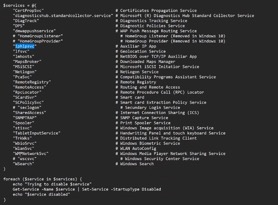
2. Create the PowerShell script using the following format:
$services = @(
“Service 01”
“Service 02”
…
)
foreach ($service in $services) {
echo “Trying to disable $service”
Get-Service -Name $service | Set-Service -StartupType Disabled
echo “$service disabled”
}
3. Open PowerShell as an administrator.
4. Ensure that the execution policy for the Windows system allows the PowerShell script to run. If the PowerShell script is not digitally signed, the execution policy must be set to “unrestricted” for the brief duration of the script’s execution.
In PowerShell, this can be done by entering the following command:
Set-ExecutionPolicy Unrestricted
5. Navigate to the PowerShell script in PowerShell.
6. Run the script.
7. If service names cannot be found on a Windows system, this may be due to the service either having a different name or not being installed on that particular system. You can check this in the Services window.
8. Check the script’s output in the updated Services window.
9. If necessary, add any services that were not detected and are still set to “Automatic” to the PowerShell script, and run the script again.
10. Reset the Execution Policy to the secure setting.
11. Restart the Windows system.
Follow our pentester step by step disabling unnecessary services on OT Windows machines:


