




Insecure SSL/TLS standards are a common – and easily preventable – attack vector on Windows systems used in OT. Penetration tester Patrick Latus shows how these standards can be disabled quickly and without complicated registry configuration.
About our series: OT security can be simple. Together with penetration tester Patrick Latus from ITrocks, we take a hands-on approach to explaining the most important steps for making OT networks more secure. Based on our joint eBook “Playbook for OT Security – as told by a pentester” we will show, step by step in our blog posts and videos, how OT administrators can implement the measures recommended in the eBook.
Which SSL/TLS standards are insecure?
SSL/TLS protocols are also widely used on Windows systems running in OT environments. TLS stands for Transport Layer Security and is an encryption protocol used for secure data transmission. SSL (Secure Sockets Layer) is the predecessor to TLS. Of course, SSL/TLS protocols are not inherently insecure. However, OT systems should always run on the latest version.
As of October 2026, the following protocol versions are insecure:
• all SSL protocol types (SSL 1.0, SSL 2.0, SSL 3.0)
• TLS 1.0
• TLS 1.1
Secure versions include:
• TLS 1.3 (current version since 2018)
• TLS 1.2 is a shaky candidate. The protocol from 2008 has been vulnerable for years to downgrade attacks such as BEAST, POODLE, and DROWN. In some configurations, TLS 1.2 still allows 3DES and RC4, while Perfect Forward Secrecy must be configured manually. Google, Apple, and Firefox will therefore remove the TLS 1.2 protocol from their trust stores and discontinue support for it in late 2026 / early 2027[1]. For Windows systems, however, the following applies: As long as the respective Windows system receives Microsoft security updates, these updates will also be delivered for TLS 1.2.
However, even on supported Windows systems, it is important to note:
• An operating system that uses TLS 1.2 by default might fall back to older TLS versions during operation (without informing the administrator). Microsoft warns: “When a connection is made by using TLS 1.2 and it doesn't get a timely response, or when the connection is reset, the OS might try to connect to the target web service by using an older TLS protocol (such as TLS 1.0 or 1.1). This usually occurs if the network is busy, or if a packet drops in the network.”[2]
• Attackers exploit precisely this mechanism by forcing targeted systems – even if TLS 1.2 or TLS 1.3 are configured as the preferred encryption protocols – to use TLS 1.0 or TLS 1.1.
To the extent possible for smooth OT operations, administrators should disable the insecure SSL/TLS versions and switch to TLS 1.3.
How can you deactivate insecure SSL/TLS standards per mouse click in OT?
Outdated, insecure SSL/TLS protocols can be disabled in various ways.
IMPORTANT: Before configuring the SSL/TLS protocols, ALWAYS back up the system!
1. Windows Registry Reconfiguration
Of course, the use of different TLS versions can be configured via the Windows Registry[3]. However, this is somewhat cumbersome. Even Microsoft advises against it.
2. Automated Disabling
It’s easier to use an open-source or freeware tool such as IIS Crypto[4].* This program allows administrators to enable and disable protocols, ciphers, hashes, and key exchange algorithms on Windows servers and clients (versions 2012–2025). The tool is available as both a GUI and a command-line interface (CLI) version.
1. To disable insecure SSL/TLS protocols on a Windows system using the GUI version, follow these steps:
Back up the system.
2. Download the program.
3. Run the program as administrator.
4. Check the list of enabled and disabled encryption protocols, hashes, ciphers, and key exchanges on both the server and client sides.
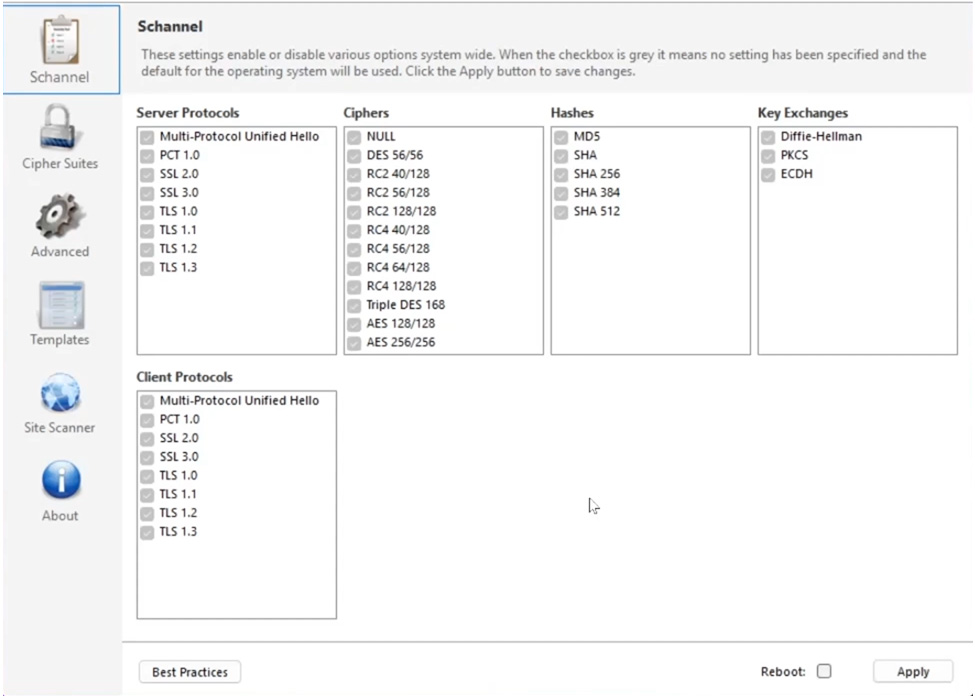
5. Disable outdated, insecure versions. This can be done manually for all settings by unchecking the corresponding checkboxes. Alternatively, you can use the “Best Practices” button to disable all settings identified as insecure at once.
6. Confirm the settings by clicking “Apply.”
7. Restart the Windows system.
8. Check the Windows system for necessary and expected processes. To subsequently examine individual connections specifically for the encryption protocols used, we recommend using Wireshark.
9. In case of functional limitations or problems, IIC Crypto can be easily reconfigured.
If the use of insecure protocols or ciphers becomes necessary for functionality (e.g., in legacy systems), the Windows system should be integrated into a security monitoring system to closely monitor communication over the outdated protocols. This can be ensured comprehensively for the entire OT via an OT network intrusion detection system (NIDS)that runs as stand-alone or integrated into your SIEM.
Please note that settings must be changed individually for each Windows system using tools such as IIS Crypto.
To learn how reconfiguration looks from an attacker’s perspective, watch our entertaining tutorial.
* Disclaimer: The mention of this tool does not constitute an explicit recommendation. There are various open-source and freeware tools available for (de)activating protocols. Please evaluate the tools in accordance with your security policies, always back up your systems, and ideally test the respective tool in advance in an isolated sandbox environment.
[1] https://csr.plus/articles/tls-1-2-deprecation-2026
[2] https://learn.microsoft.com/en-us/troubleshoot/entra/entra-id/ad-dmn-services/enable-support-tls-environment?tabs=azure-monitor
[3] https://learn.microsoft.com/en-us/troubleshoot/windows-server/performance/windows-registry-advanced-users
[4] https://www.nartac.com/Products/IISCrypto/


